A website can have great content and attractive design, but if search engines cannot properly crawl, understand, and index it, getting organic traffic can be difficult.
This is where an SEO audit becomes useful.
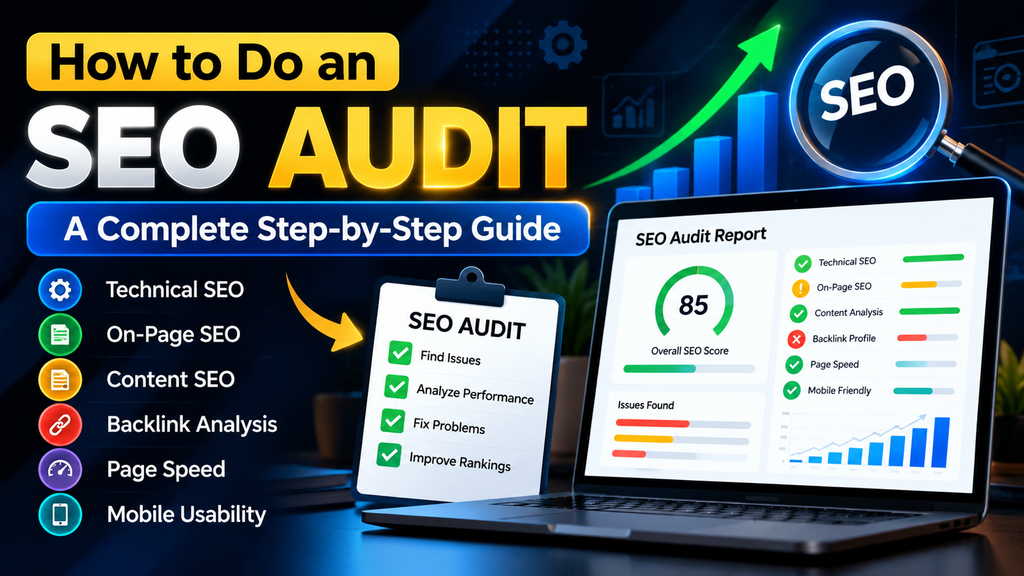
An SEO audit is a systematic review of your website to identify problems that may affect its search visibility, user experience, and overall SEO performance.
In this guide, you’ll learn how to perform an SEO audit step by step, what areas you should check, common SEO problems to look for, and how to prioritize your fixes.
What Is an SEO Audit?
An SEO audit is an evaluation of a website’s search engine optimization.
It examines different areas of your website, including:
- Technical SEO
- On-page SEO
- Content quality
- Website structure
- Internal linking
- Mobile usability
- Page speed
- Indexing
- Metadata
- Backlinks and off-page SEO
The purpose is not simply to find problems. The goal is to understand which issues may be limiting your website’s search visibility and what you can do to improve them.
Why Is an SEO Audit Important?
Search engines use many different signals to understand and rank webpages.
Even small technical or on-page problems can make it harder for search engines to crawl or understand your content.
Regular SEO audits can help you:
- Find technical SEO problems
- Identify missing or weak metadata
- Improve website structure
- Discover broken links
- Improve internal linking
- Check indexing issues
- Identify content gaps
- Improve user experience
- Find opportunities for better organic visibility
An audit is especially useful when launching a new website, redesigning an existing site, experiencing a traffic decline, or starting a new SEO campaign.
How to Do an SEO Audit Step by Step
Let’s look at the main steps involved in a website SEO audit.
1. Check Website Indexing
Website indexing is the process through which Google processes a page and considers it for inclusion in its search results. A published page is not necessarily indexed.
How to Check Indexing
- Open Google Search Console.
- Select your website property.
- Paste an important page URL into the URL Inspection tool.
- Review the indexing status and any reported issues.
- Open Indexing → Pages to review indexing problems across your website.
Common Problems and Solutions
- Discovered – currently not indexed: Review the page’s usefulness, internal links, and accessibility. Google may need more time to process it.
- Crawled – currently not indexed: Check whether the content is original, useful, and sufficiently distinct from similar pages.
- Excluded by noindex: Remove an unintended
noindexdirective if the page should be eligible for indexing. - Blocked by robots.txt: Check whether an incorrect rule prevents Google from crawling an important page.
- Incorrect canonical URL: Confirm that the page identifies the intended preferred URL.
Also check that your XML sitemap loads correctly. Depending on your setup, it may be available at /sitemap_index.xml or /wp-sitemap.xml.
After fixing a genuine issue, inspect the URL again and request indexing if appropriate. Google does not guarantee indexing or rankings simply because a request has been submitted.
2. Check Your Website’s Technical SEO
Technical SEO helps search engines access and understand your website. During an audit, review the following areas.
HTTPS and Website Security
Open your important pages and confirm that they load securely using HTTPS. Check for certificate warnings and ensure that redirects lead to your preferred website version.
If a security warning appears, review your hosting provider’s SSL settings before changing redirects.
Robots.txt and XML Sitemap
Open https://yourdomain.com/robots.txt, replacing the example domain with your own. Check that important pages are not accidentally blocked.
Next, open your XML sitemap and confirm that it loads and includes the important URLs you want search engines to discover. You can review sitemap status in Google Search Console under Indexing → Sitemaps.
Canonical URLs
Canonical tags indicate the preferred version of a page when similar URLs exist. Inspect important pages to ensure their canonical URLs point to the correct destinations.
Avoid pointing every page to the homepage. Each unique page should generally identify its own preferred URL unless consolidation is intentional.
Broken Links and Redirects
Test important internal links and check for broken destinations, redirect loops, or redirects to unrelated pages. Update broken links and redirect old URLs only to relevant replacements.
Technical SEO Checklist
Major technical issues have been corrected and retested.
Important pages load securely.
Important pages are accessible to search engines.
The XML sitemap works correctly.
Canonical URLs are appropriate.
Internal links and redirects work.
3. Check Page Titles and Meta Descriptions
SEO titles and meta descriptions help communicate what a webpage contains. Google may generate different titles or snippets depending on the search query.
How to Check Them
- Open the page in WordPress.
- Locate the SEO settings in your SEO plugin.
- Review the title and meta description.
- Confirm that both accurately describe the page.
- Check important pages for missing or duplicated metadata.
Weak title: Services
More descriptive title: Guest Posting Services | White-Hat Link Building
Weak description: We provide services for all your website needs.
More descriptive description: Explore guest posting and blogger outreach services for relevant websites and white-hat link-building campaigns.
Use these examples only when they accurately describe the page.
Common Issues
- Missing or duplicated titles.
- Vague descriptions.
- Unnatural keyword repetition.
- Metadata that does not match the page.
- Titles or descriptions that are unnecessarily long.
There is no universal character limit that guarantees a particular search snippet. Keep metadata concise and put the most important information first.
You can also review Performance → Search results in Google Search Console to understand which queries generate impressions and clicks. Changes to metadata do not guarantee higher rankings.
4. Review Your Website’s Heading Structure
Headings help readers scan an article and understand how its sections relate to one another.
A simple heading structure might look like this:
- H1: How to Do an SEO Audit
- H2: Check Website Indexing
- H2: Review Technical SEO
- H2: Analyze Your Content
- H3: Check Content Accuracy
- H3: Review Internal Links
In WordPress, select a heading block and choose the appropriate heading level from the toolbar or block settings.
What to Check
- The main topic is clear.
- Major sections use descriptive headings.
- Subsections are logically organized.
- Headings accurately describe the following content.
- Keywords are used naturally.
- Headings are not used merely to make text larger.
For a straightforward article, one clear H1 is usually the simplest approach. Use H2 for major sections and H3 for subsections where appropriate.s or changing heading levels just to satisfy an SEO checklist.
5. Analyze Your Website Content
A content audit checks whether your pages provide useful, accurate, and relevant information. A long article is not automatically valuable; it must answer the reader’s question.
Check Search Intent
Identify the main question your page should answer. For example, someone searching for “how to check website SEO score” will likely expect practical steps, tools, and an explanation of the results.
Review your content to see whether it meets that need. Add missing explanations rather than copying competitors.
Improve Content Quality
Look for:
- Questions that remain unanswered.
- Outdated or inaccurate information.
- Repeated paragraphs that add little value.
- Instructions that skip important steps.
- Claims that need reliable sources.
- Examples that would help readers understand a process.
Where appropriate, add original screenshots, real test results, or step-by-step instructions. Clearly explain what each example demonstrates.
Review Similar Pages
Compare articles that cover closely related topics. If two pages provide nearly identical information, clarify their different purposes or consider consolidating genuinely redundant content when that better serves readers.
Do not delete related pages simply because they share keywords.
Content Audit Checklist
- The page answers a clear question.
- Information is accurate and current.
- Examples are relevant and genuine.
- Important steps are explained.
- Unnecessary repetition has been removed.
- Related pages provide distinct value.
- Links lead to useful resources.
6. Check Keyword Usage
Keywords describe the topics people search for. Use them naturally to help communicate what a page covers, rather than repeating the same phrase excessively.
Where to Review Keywords
Check whether your main topic is reflected appropriately in the SEO title, main heading, introduction, relevant subheadings, and body content. Include a keyword in the URL or image alt text only when it makes sense.
For example, an article about website SEO audits may naturally discuss indexing, technical SEO, metadata, and internal linking.
Avoid Keyword Stuffing
Unnatural: Our SEO audit service provides the best SEO audit for every SEO audit requirement.
Better: Our SEO audit service helps website owners identify technical issues and review important on-page elements.
There is no universal keyword density percentage that every page must achieve. Prioritize clarity and relevance over keyword counts.
Use Search Console
Open Performance → Search results in Google Search Console and review the queries generating impressions and clicks. Use relevant queries to identify topics that your content could explain more thoroughly.
Do not add a section merely to repeat a search phrase. Add information only when it genuinely helps the reader.al readers rather than a fixed keyword density target.
7. Improve Internal Linking
Internal links connect pages on the same website. They help visitors discover related information and help search engines find and understand your content.
How to Add Internal Links
- Open a post in the WordPress editor.
- Select the text you want to link.
- Press
Ctrl + Kor select the link icon. - Search for a relevant published page or paste its URL.
- Apply the link, save the post, and test it on the published page.
Use descriptive anchor text.
Weak: Click here.
Better: Read our guide to checking your website SEO score.
For example, an SEO audit guide could link to your free SEO checker if the tool helps readers investigate their websites. A guest posting guide could link to a related blogger outreach article.
What to Check
- Important pages are discoverable through relevant links.
- Related articles link to one another where useful.
- Links lead to the correct destinations.
- Anchor text describes the destination.
- Broken or irrelevant links are corrected.
There is no fixed number of internal links required for every article. Add links when they improve navigation or help readers find useful information.
8. Check Images and Alt Text
Images can explain concepts, demonstrate steps, and improve the reading experience. They should be relevant, accessible, and appropriately sized.
Review Alt Text
In WordPress, select an image block and locate the Alt text field.
Write a concise description of meaningful images.
Example: “SEO audit report showing indexing and metadata issues.”
Only use this description if it accurately describes the image. Avoid repeating keywords unnecessarily. Decorative images may appropriately use empty alt text so assistive technology can ignore them.
Optimize Image Performance
- Resize images to suitable dimensions.
- Compress images while maintaining acceptable quality.
- Use WebP or AVIF where supported.
- Give image files descriptive names when practical.
- Check that images display correctly on mobile devices.
- Fix broken images and remove unnecessary large files.
Use Google PageSpeed Insights to investigate image-related performance recommendations.
Original screenshots can be particularly useful in tutorials, provided they are genuine, relevant, and do not reveal private account information.
9. Check Mobile-Friendliness
A mobile-friendly website should be easy to read and use on a smartphone.
Open your homepage, blog posts, contact page, and important tools on a real mobile device.
Check the Following
- Text is readable without unnecessary zooming.
- Content fits within the screen.
- Menus and links work correctly.
- Buttons are easy to tap.
- Forms can be completed successfully.
- Images and tables display appropriately.
- Important content is not hidden or overlapping.
- Horizontal scrolling does not occur unnecessarily.
You can also use Chrome’s responsive device mode to inspect different screen sizes, but this does not replace testing on a real phone.
Fix Common Problems
If text is too small, review font sizes. If content overflows, inspect wide images, tables, and fixed-width elements. If forms are difficult to use, test the fields, validation messages, and submit button.
After making changes, test the affected pages again on mobile and desktop.
10. Check Page Speed
Page speed affects how quickly visitors can load and use a webpage. Test important URLs individually because different pages may have different performance problems.
How to Run a Test
- Open Google PageSpeed Insights.
- Enter an important page URL.
- Run the analysis.
- Review both mobile and desktop results.
- Investigate the recommendations and retest after making changes.
Understand Core Web Vitals
The three main Core Web Vitals are:
- Largest Contentful Paint (LCP): Good at 2.5 seconds or less.
- Interaction to Next Paint (INP): Good at 200 milliseconds or less.
- Cumulative Layout Shift (CLS): Good at 0.1 or less.
These thresholds are evaluated at the 75th percentile of real-user visits when field data is available. A single lab test may not represent every visitor’s experience.
Common Speed Improvements
Large images: Resize and compress images where necessary.
Unnecessary scripts: Review scripts and plugins that are not needed, taking care not to break essential features.
Caching: Check whether suitable page caching is configured.
Slow server response: Investigate hosting performance if delays persist across important pages.
Layout shifts: Reserve space for images and embedded content to reduce unexpected movement.
Make changes gradually and test your website after each significant change. Avoid installing multiple optimization plugins that perform overlapping tasks.
The Lighthouse performance score categories are 0–49 (poor), 50–89 (needs improvement), and 90–100 (good). These categories describe the performance score, not your website’s overall SEO quality or its likelihood of ranking.
Key takeaway: Page speed optimization should focus on measurable problems and a better user experience. Compare test results after changes, and check that your website still works correctly.
11. Find Broken Links
Broken links can create a poor experience for visitors.
During your audit, check:
- Internal links
- External links
- Broken pages
- Incorrect URLs
- Links pointing to deleted content
If an important internal link is broken, update it to the correct page.
If a page has permanently moved, use an appropriate redirect when necessary.
12. Review Your URL Structure
A good URL should be relatively short, descriptive, and understandable.
For example:
Better:
example.com/how-to-do-an-seo-audit/
Instead of:
example.com/page?id=83749&category=seo
Avoid unnecessarily changing existing URLs, especially when they are already indexed and receiving traffic.
If you need to change an established URL, plan the redirect properly.
13. Check Your Backlink Profile
Backlinks are links from other websites pointing to your website.
During an SEO audit, review:
- Number of referring domains
- Relevance of linking websites
- Quality of backlinks
- Anchor text
- Potentially harmful or unnatural links
- Competitor backlink opportunities
Quality and relevance matter more than simply collecting a large number of backlinks.
For example, a relevant technology website linking to a technology-related article may provide more contextual value than an unrelated website.
14. Analyze Competitors
Competitor research can reveal content and link-building opportunities.
Look at competing websites and identify:
- Topics they cover
- Keywords they target
- Content formats
- Internal linking structures
- Backlink opportunities
- Pages receiving organic visibility
Don’t simply copy competitors.
Instead, use competitor research to identify topics and opportunities that your website can address more usefully.
15. Check Your Website’s E-E-A-T Signals
For websites that publish informational or professional content, trust and transparency are important.
Make sure your website clearly communicates:
- Who operates the website
- What services you provide
- How users can contact you
- Relevant author information where appropriate
- Privacy information
- Terms and conditions
- Clear business/service information
An About Us page and a clear Contact page can help users understand who is behind a website.
Common SEO Audit Problems
Some common issues found during website audits include:
- Missing meta descriptions
- Duplicate or poorly written title tags
- Missing H1 headings
- Broken internal links
- Slow-loading pages
- Large unoptimized images
- Poor mobile layout
- Thin or outdated content
- Poor internal linking
- Indexing problems
- Incorrect canonical URLs
- Missing alt text
- Poor URL structures
- Weak website navigation
- Low-quality or irrelevant backlinks
You don’t necessarily need to fix everything at once.
Prioritize problems that have the biggest potential impact on users and search engine accessibility.
How to Prioritize SEO Issues
After completing your audit, divide issues into three groups.
High Priority
Fix issues such as:
- Important pages not being indexed
- Major technical errors
- Broken important pages
- Serious mobile usability problems
- Incorrect canonicalization
- Website accessibility problems
Medium Priority
Work on:
- Internal linking
- Metadata improvements
- Image optimization
- Content improvements
- Heading structure
Low Priority
These can include smaller improvements that don’t prevent users or search engines from accessing your important content.
This approach prevents you from becoming overwhelmed by a long SEO audit report.
Use a Free SEO Checker
Manually checking every SEO factor can take considerable time.
If you want a quick starting point, you can use our Free Website SEO Checker to analyze your website and identify common SEO issues.
👉 Check Your Website SEO for Free
After receiving your report, review the issues and prioritize the most important problems first.
What Should You Do After an SEO Audit?
An SEO audit is only useful if you act on the findings.
After completing your audit:
Step 1
Fix critical technical problems.
Step 2
Improve important page titles and meta descriptions.
Step 3
Improve weak or outdated content.
Step 4
Build a logical internal linking structure.
Step 5
Optimize images and improve page performance.
Step 6
Work on relevant, high-quality backlinks.
Step 7
Monitor your website through Google Search Console and other SEO tools.
SEO is an ongoing process rather than a one-time task.
Final Thoughts
A regular SEO audit can help you understand how well your website is performing and identify areas that need improvement.
Instead of trying to fix everything simultaneously, start with the issues that have the greatest effect on crawling, indexing, usability, content quality, and search visibility.
Use your audit as a roadmap for improving your website over time.
If you want to quickly check your website, try our Free Website SEO Checker and use the results to identify areas that may need attention.
Need professional help with your SEO?
If your audit reveals problems that you’re not sure how to fix, you can also contact LinkAuthorityWeb for SEO, blogger outreach, guest posting, and link-building services.
👉 Request a Free SEO Consultation
FAQ
What is an SEO audit?
An SEO audit is a detailed review of a website to identify technical, on-page, content, usability, and off-page SEO issues that may affect its search visibility.
How often should I perform an SEO audit?
There is no single schedule that fits every website. A website can be reviewed regularly and also audited after major redesigns, migrations, or significant SEO changes.
Can I do an SEO audit for free?
Yes. You can perform many basic SEO checks using free tools such as Google Search Console and free website SEO checkers.
Does an SEO audit improve Google rankings automatically?
No. An audit identifies potential issues and opportunities. Rankings may improve only after relevant problems are properly addressed, and SEO results can take time.
What is the difference between an SEO audit and an SEO strategy?
An SEO audit evaluates the current state of a website. An SEO strategy uses those findings to plan what should be improved and how SEO activities should be prioritized.